
|
| WebScope | My Account | Products & Services | Support | Feedback | About us | |
| WebScope 2 is now available! |
|
WebScope Do-It-Yourself Setup
Follow these steps to start your video broadcast:
-
Download and Install WebScope.
If you need help, please email techsupport@inventworld.com
When you run the installer, you will see this dialog.
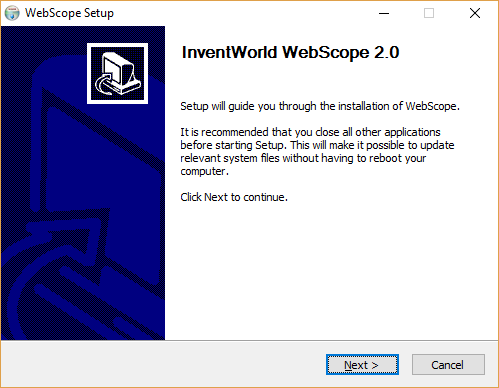
Follow prompts to complete setup.
At the end of setup, WebScope will start.
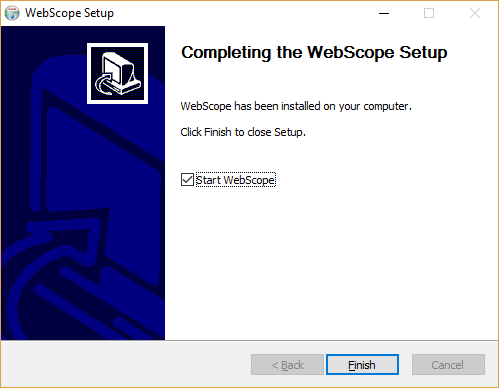
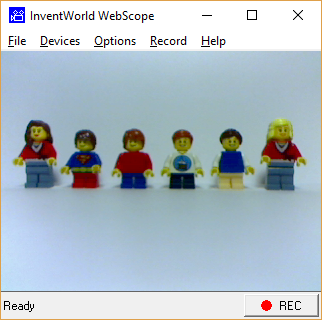
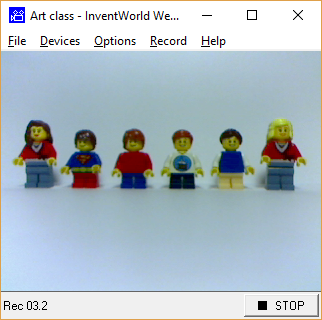
You will see video from your webcam and Login dialog.
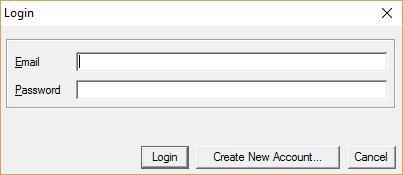
Login with your InventWorld.com account. To create a new account, please Sign Up.
After login, you will see a list of your video channels.
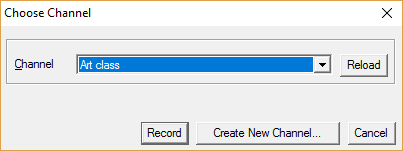
Select a channel and click Record.
Please record a short video to welcome your audience.
-
To invite audience to your broadcast you will need email addresses of your vievers.
- Login to your account.
- Click "WebScope Camera Owner."
- Click "Invite Viewers" in the Toolbox for your camera.
- Enter an email address of a viewer and click "Invite".
- Repeat invitations for all your viewers.
- Each viewer you invite will receive an email invitation with personalized password to access your broadcast.
- To record video from camcoder or security camera, please see Hardware Guide.
Thank you for using WebScope! We appresiate your feedback.
Professional installation and Turn-key solutions are available upon request.
If you have any questions please contact support@inventworld.com or call (425) 644-4500
| © 2006 - 2026 InventWorld Corporation. All Rights Reserved. | | Credits | Privacy | Terms of use | |